Introduction#
To use the plugin, you need to:
- install QGIS Desktop
- install the plugin for QGIS
- add a connection to a PostgreSQL database with PostGIS extension
- install the database structure on this PostgreSQL database
Get QGIS Desktop#
The administrator must use the QGIS desktop software, version 3.40.x or above, to edit these needed metadata.
You can download QGIS in the official download page
Install the plugin#
At present, the plugin is not yet in QGIS official plugin repository. To install the plugin, you need to:
- open QGIS Plugin manager (menu Plugins)
-
in the Parameters tab, add a new plugin repository name RoadNetwork with the URL: https://github.com/3liz/qgis-road-network-plugin/releases/latest/download/plugins.xml
-
In the All tab, search for the word
RoadNetworkand install the RoadNetwork plugin.
After a successful installation, you should see a new dock called RoadNetwork
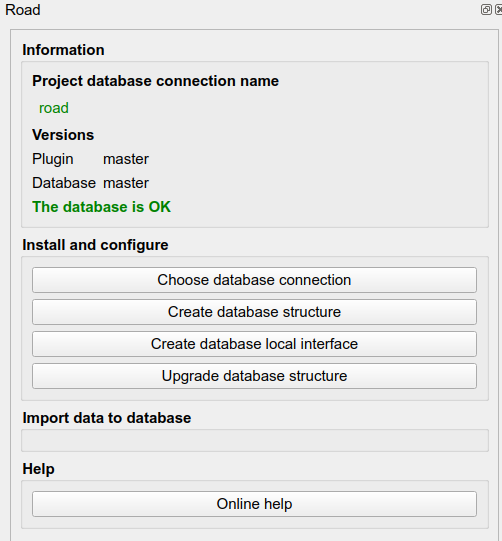
For further details, you can have a look at 3liz documentation web page.
Add a connection to the PostgreSQL database#
The plugin stores all the data in a PostgreSQL database, with the PostGIS extension installed (to manage spatial data).
You need to have access to a PostgreSQL database, with enough rights to create a database schema and tables inside this schema.
In QGIS, use the Datasource manager under the Layer menu to create a new PostgreSQL connection:
- Activate the PostgreSQL tab (elephant icon)
- Click on the New button
- In the creation dialog, fill the needed information, and use the Test connection button to make sure the credentials are ok.
We advise to:
- use a service connection instead of the basic authentication. See QGIS documentation
- check the boxes
Use estimated table metadataandAlso list tables with no geometry
Once your connection is set up, you can create the database structure in your PostgreSQL database
Configure the plugin#
This algorithm will allow to configure the extension for the current QGIS project.
You must run this script before any other script.
Parameters:
PostgreSQL connection to the database: name of the database connection you would like to use for the current QGIS project. This connection will be used for the other algorithms.
Create the database structure#
Install the database structure with tables and function on the chosen database connection.
This script will add a road_graph schema with needed tables and functions.
Parameters:
PostgreSQL connection to database: name of the database connection you would like to use for the installation.
Upgrade database structure#
Upgrade the tables and functions in the chosen database.
If you have upgraded your QGIS plugin, you can run this script to upgrade your database to the new plugin version.
Parameters:
PostgreSQL connection to the database: name of the database connection you would like to use for the upgrade.